
User groups
A user group is how an account grants access. Each group carries one or more policies, and everyone in the group can do what those policies allow. Putting a user or an API client in a group is what lets them into the account at all; taking them out is what shuts the door.
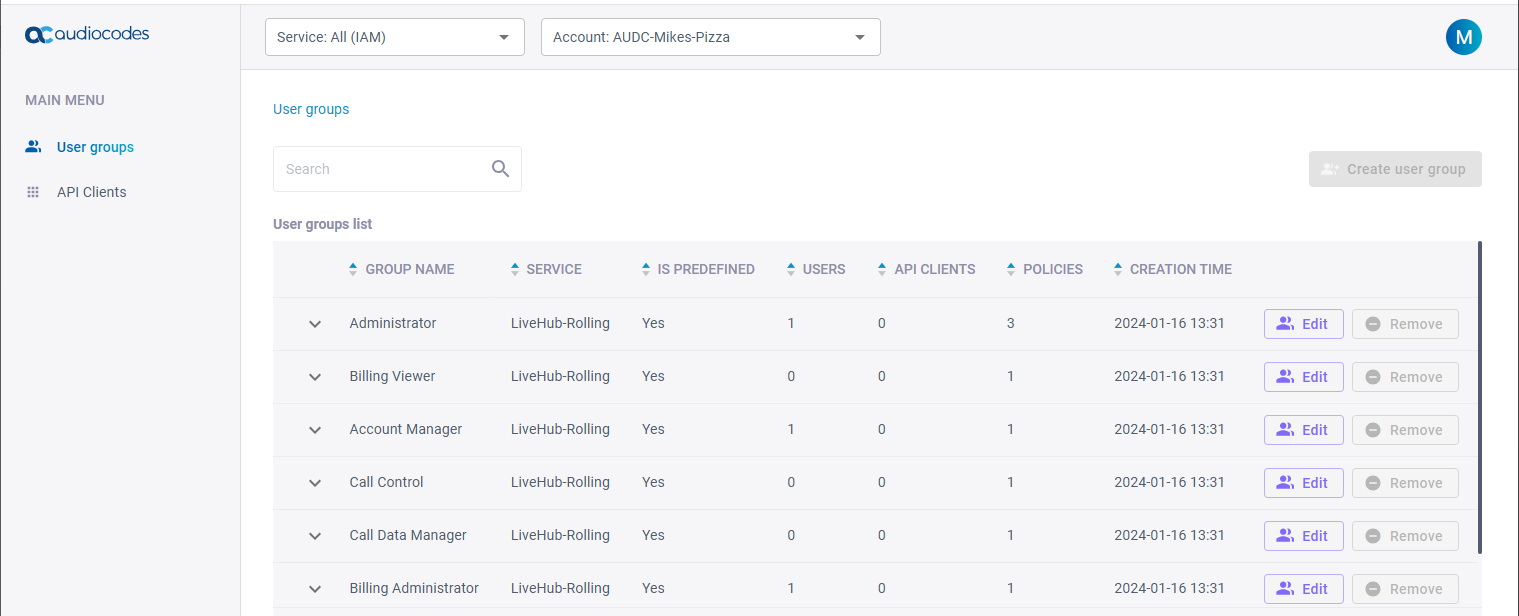
Live Hub supplies seven groups, and those are the only groups available. You cannot add a group, and you cannot edit or delete the ones supplied: Create user group and Remove are present but grayed out. What you can change is who is in each group, and which policies it carries.
A user who needs the access of more than one group is placed in each of them.
The predefined groups
Each group carries a fixed set of policies:
| Group | Policies | Grants |
|---|---|---|
| Administrator | Configuration Administrator, Call Data Manager, and Call Control | Full read-write across the account |
| Monitor | Configuration Viewer | Read-only across the account |
| Call Data Manager | Call Data Manager | Calls, recordings, and transcripts |
| Call Control | Call Control | Place calls through the API |
| Account Manager | Account Manager | Manage users, API clients, and group membership |
| Billing Administrator | Billing Administrator | Read-write in Billing, including adding credit |
| Billing Viewer | Billing Viewer | Read-only in Billing |
For the roles each policy grants, see Predefined policies.
Whoever signs up for an account is placed in Administrator, Billing Administrator, and Account Manager automatically.
Add a user to a group
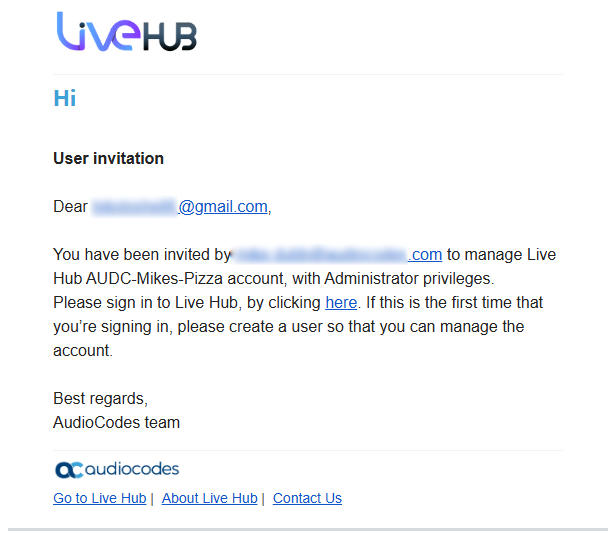
Adding a user to a group in an account they are not yet in is the same thing as inviting them: Live Hub emails them a link.
To add a user to a group:
-
Open Access control (IAM), and select User groups.
-
Click Edit on the group.
-
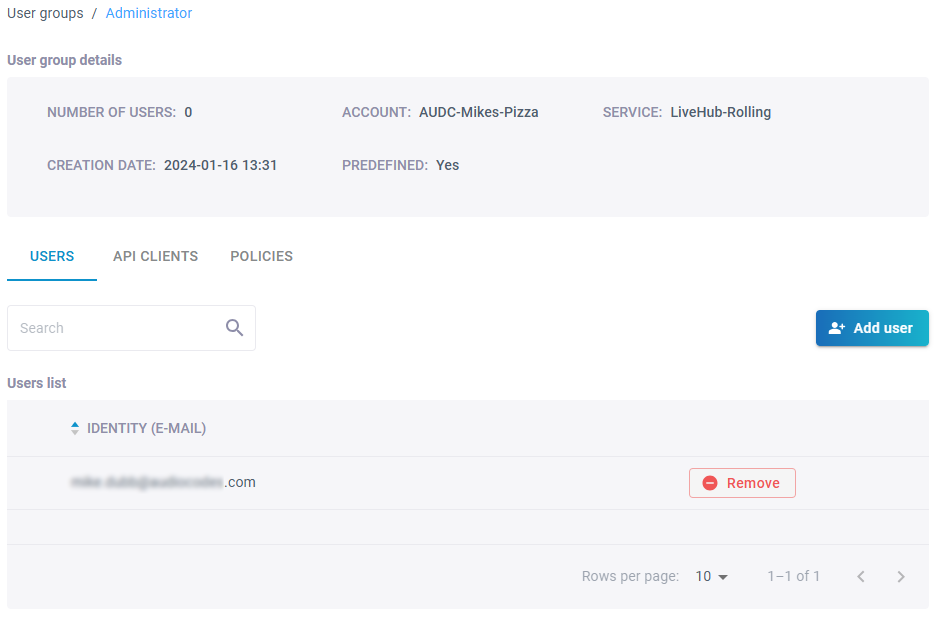
On the Users tab, click Add user.
-
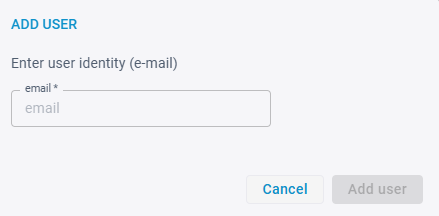
Enter the user's email address, and then click Add user.
Live Hub sends an invitation, and the user joins the account by following the link in it.
Add an API client to a group
Create the API client before you add it to a group. See Add an API client.
To add an API client to a group:
-
Open Access control (IAM), and select User groups.
-
Click Edit on the group.
-
On the API Clients tab, click Add API Client.
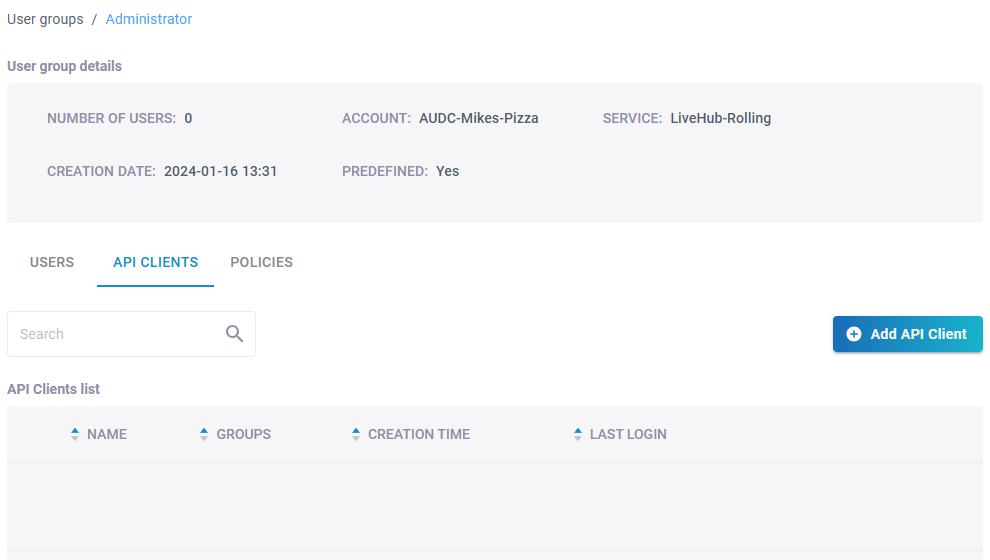
-
From the drop-down list, select the API clients, and then click Add API Client.
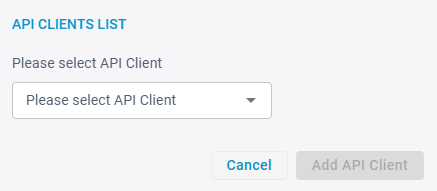
Remove a user or API client from a group
Removing a user or an API client from a group withdraws the rights that group carries.
To remove a user or API client:
-
Open Access control (IAM), and select User groups.
-
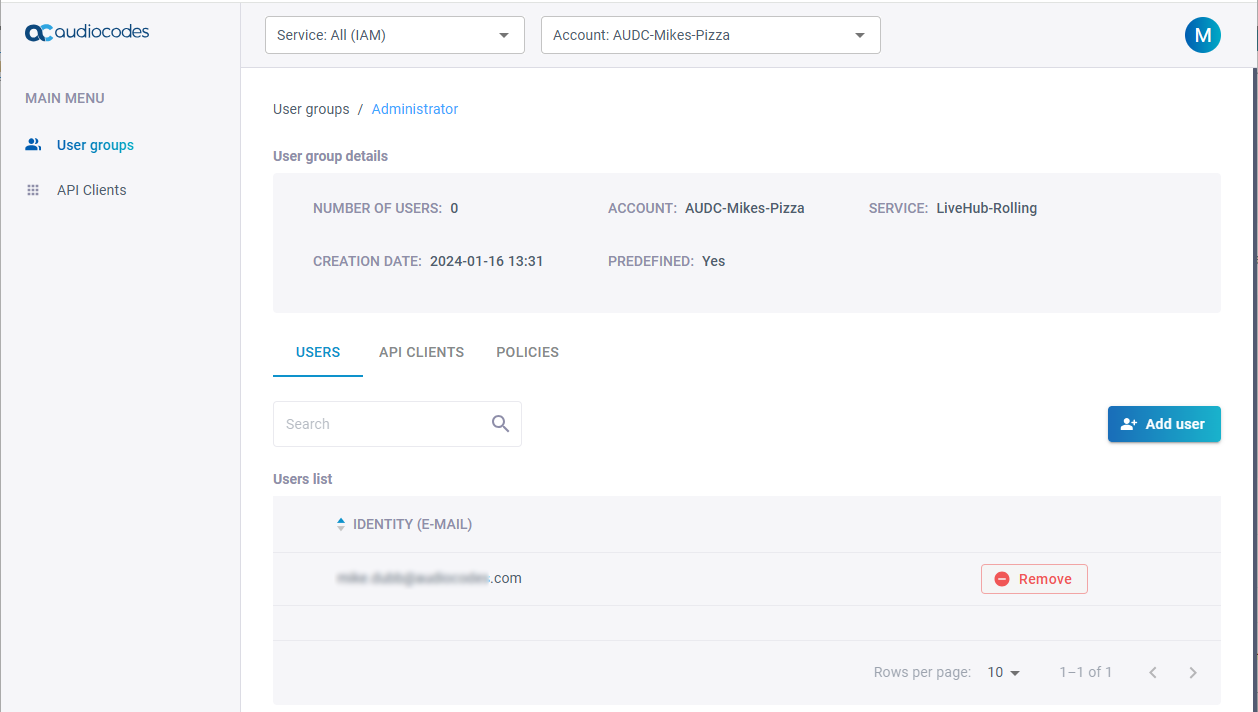
Click Edit on the group.
-
Select the Users or API Clients tab.
-
Click Remove on the row, and then confirm with Remove.
The change is not immediate for anyone who is mid-session: a signed-in user keeps their old rights until they sign in again, and an API client keeps its rights until its token expires.
Policies and external IDP roles
Clicking Edit on a group also shows two further settings:
- Policies lists what the group is allowed to do. Attach Policy and Detach change the list.
- 'Predefined external IDP roles' names the app role of the Live Hub enterprise application that this group answers to, and 'External IDP roles' is where you can name others. See Use your own identity provider.